 If you are not registered, click the My Account drop-down menu and select Register.
WRBLO Apply is an online tool developed and owned by WRBLO Community Interest Company. It allows grassroots organisations in sub-Saharan Africa to apply for funds for their community development projects. This document describes how to use WRBLO Apply.
WRBLO funds projects that deliver sustainable access to healthcare, improve living standards and create economic growth. Each project impacts at least one of these community development categories:
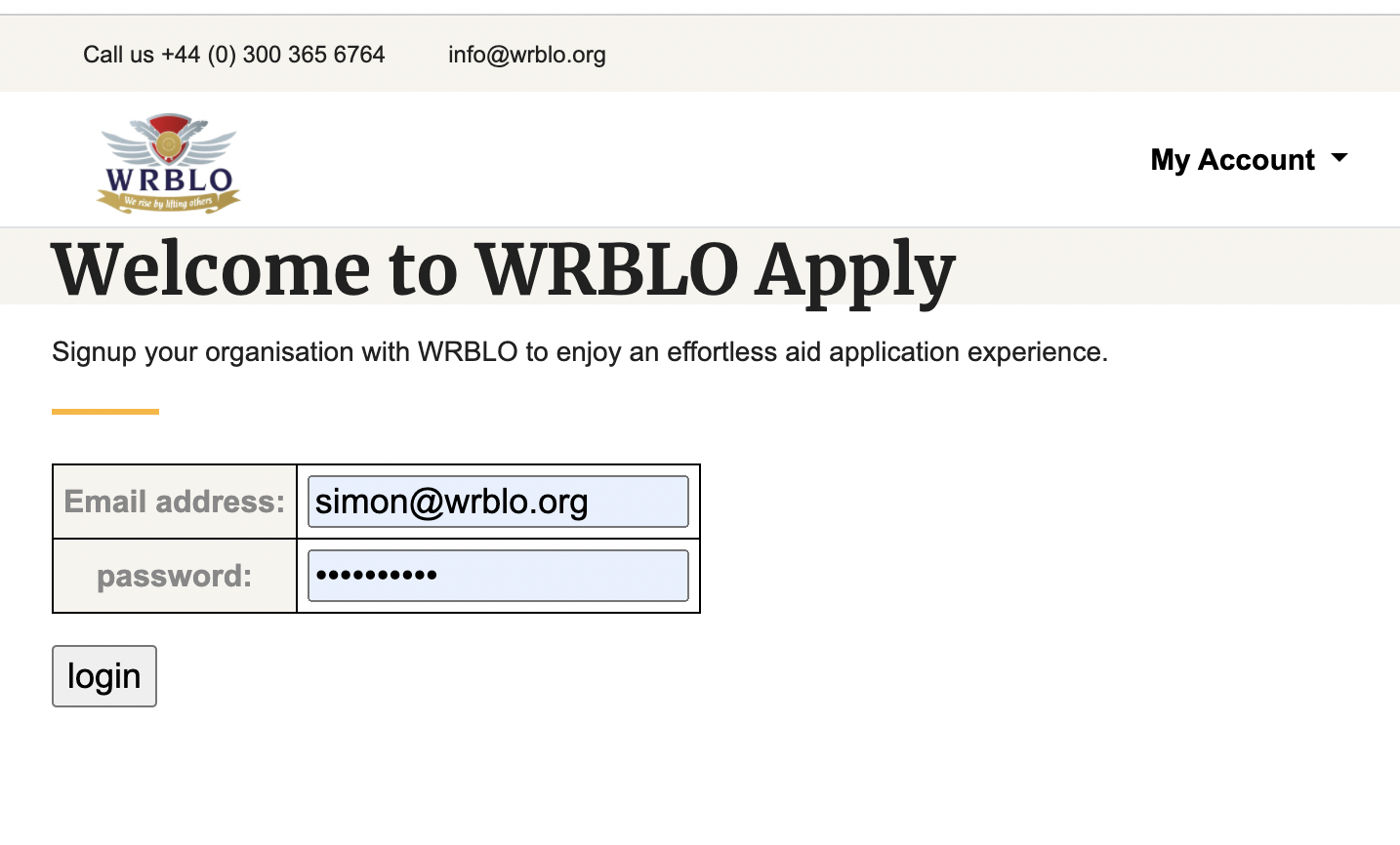
If you are not logged into Apply, the home page will take you to the login screen:
If you are not registered, click the My Account drop-down menu and select Register.
Anyone who belongs to a non-governmental organisation in Sub-Saharan can register on Apply. When registering, you will need to complete all fields on the form:
 Note that your organisation must be registered in a country in Sub-Saharan Africa. Acceptable countries is shown in the drop-down Org Reg Country list.
When you have completed the form and clicked the register button, Apply will compare your organisation details with those already registered. If found, you are added to that organisation. If it is new, then you will need to give full details later on (see Organisation section).
You must complete all the fields before you can register.
When you click the register button, you are registered with Apply. However, you must activate your account before you can use it. email admin@wrblo.org from your registered email address, and tell us a bit about your organisation. We will contact you in person and can then activate your account.
Once your account is activated, you can add further details about your organisation and your project.
To reset your password, you will need to email admin@wrblo.org. We will check your details and send you a link that will let your reset your password details.
The instuctions can be found at any time by clicking the My Account menu button and selecting Reset Password. This will check that your email address is registered on our system.
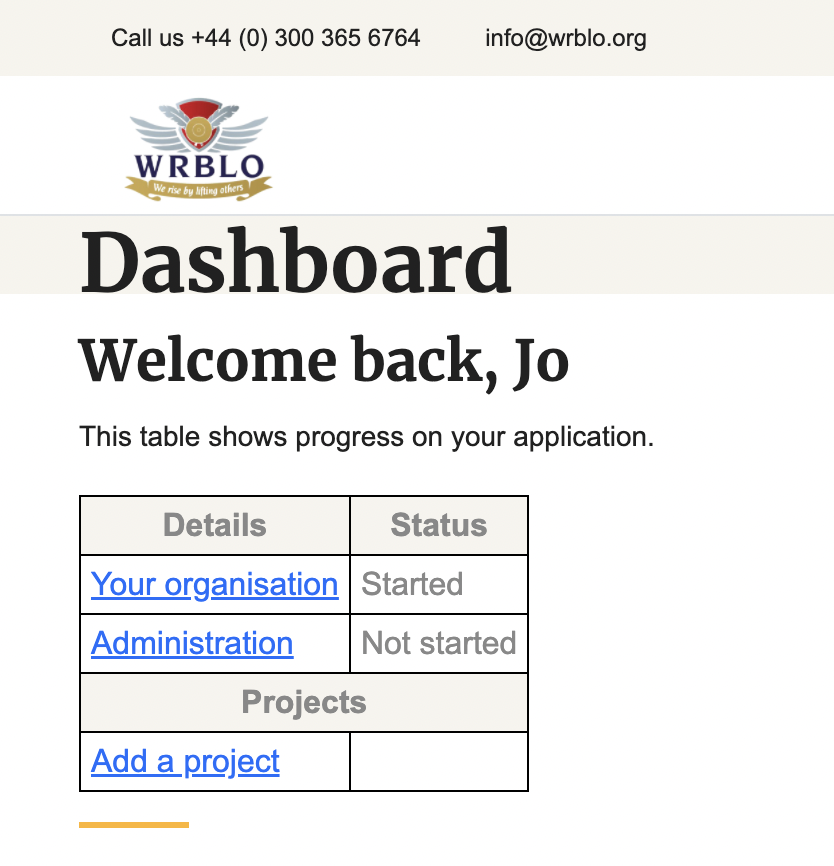
When you log into your accound you will see your dashboard. This shows your progress in completing your Organisation details, any organisation handling your Administration, and any Projects you have entered. It also shows WRBLO progress in verifying your details and assessing your application.
Underneath the dashboard is a section called Assessment Process. This shows the progress of each of yours projects through their assessments.
The status of your organisation, administration and projects will be one of the following:
Finance, admininstration and banking details are in the Administration section.
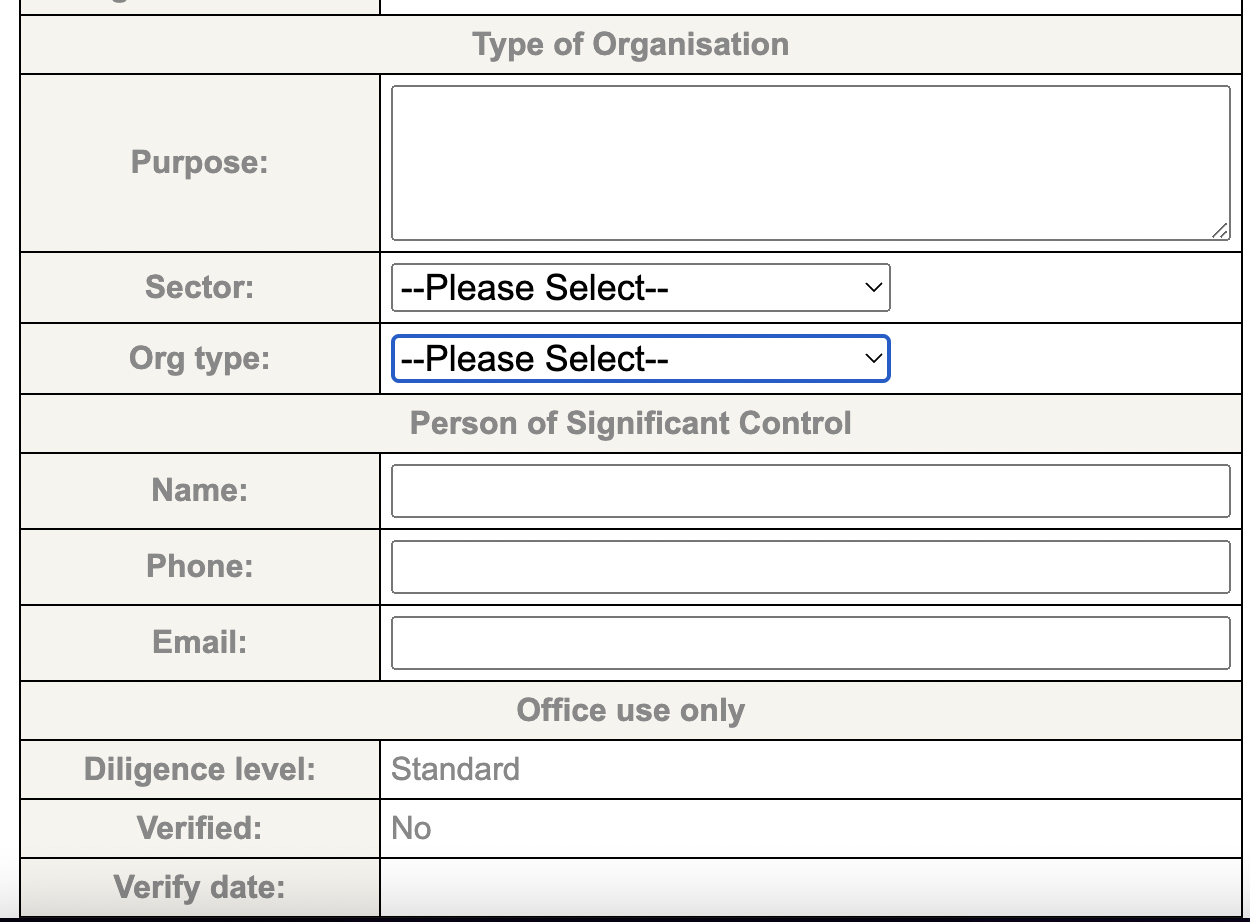
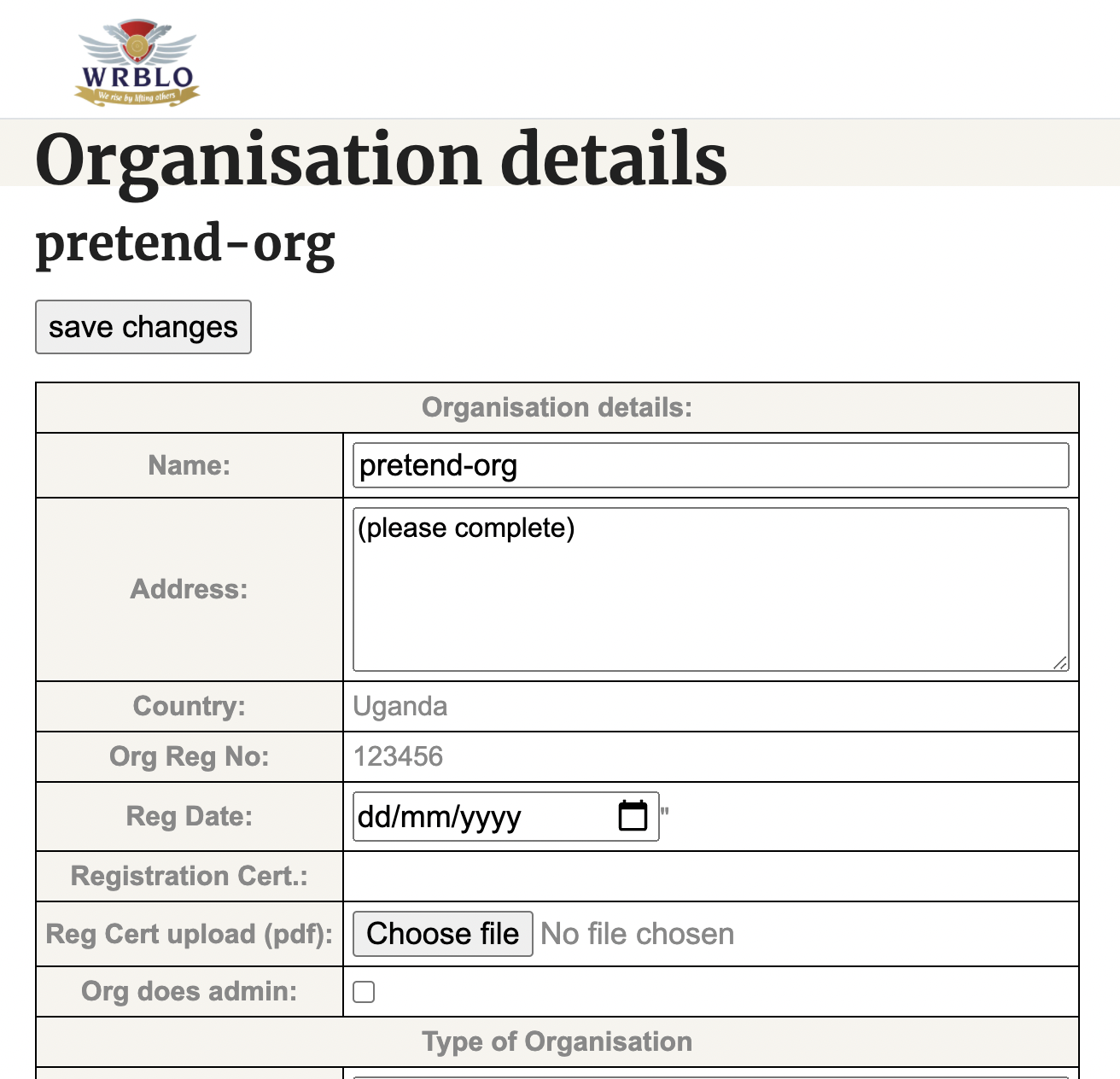 The organisation form gives all the details we need to check that are described below:
Any organisation that handles its own finances will include extra fields for banking details:
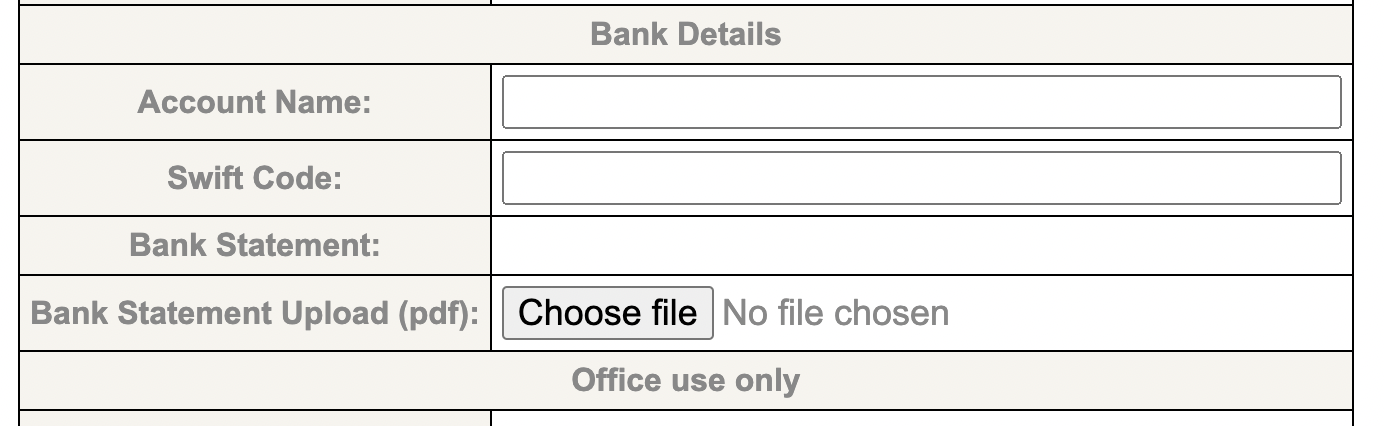
These are the detais that WRBLO will use if it funds your project. The account name should match the name of the organisation handling finances, and the swift code should be the full account code and number. When you have uploaded a recent bank statement, a link to it will appear in the Bank Statement field. The bank statement details will only be available to WRBLO staff and yourself. The bank statement should provide evidence that the account details are correct.
If your organisation does not handle its own administration, you need to set up another organisation on Apply to handle finances. You can do this by clicking the Administration link on the dashboard:
This will display a Create and Admininstrative Organisation form:
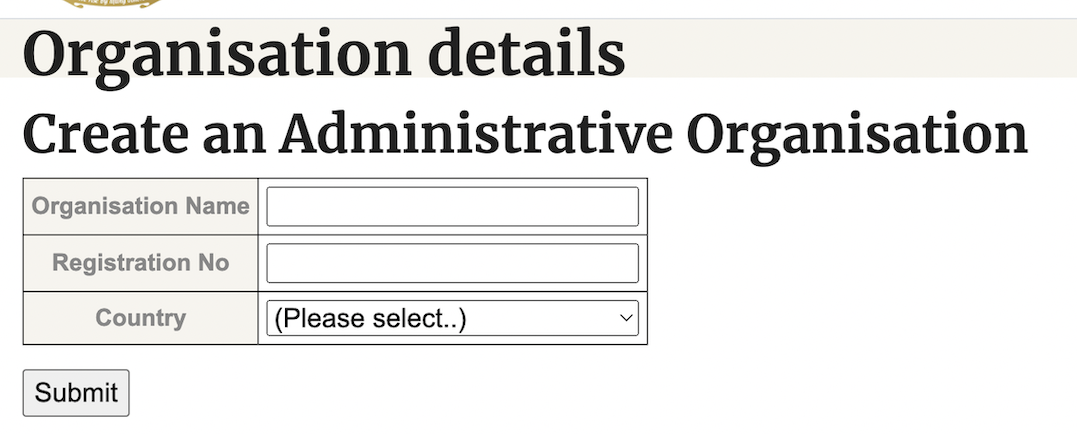
This organisation can be registered in any country, including the UK and the US, subject to any current international financial trade restrictions.
When you click Submit, Apply will check whether the organisation is already registered with us. If not, then you will need to enter all the new organisation details, as before.
Projects can be added from the dashboard. Click the Add a project link to open the Projects screen. From here you can add new projects, enter a project’s details or switch between different project screens.

Underneath the Project menu will appear links to all your projects.
The following fields are required:
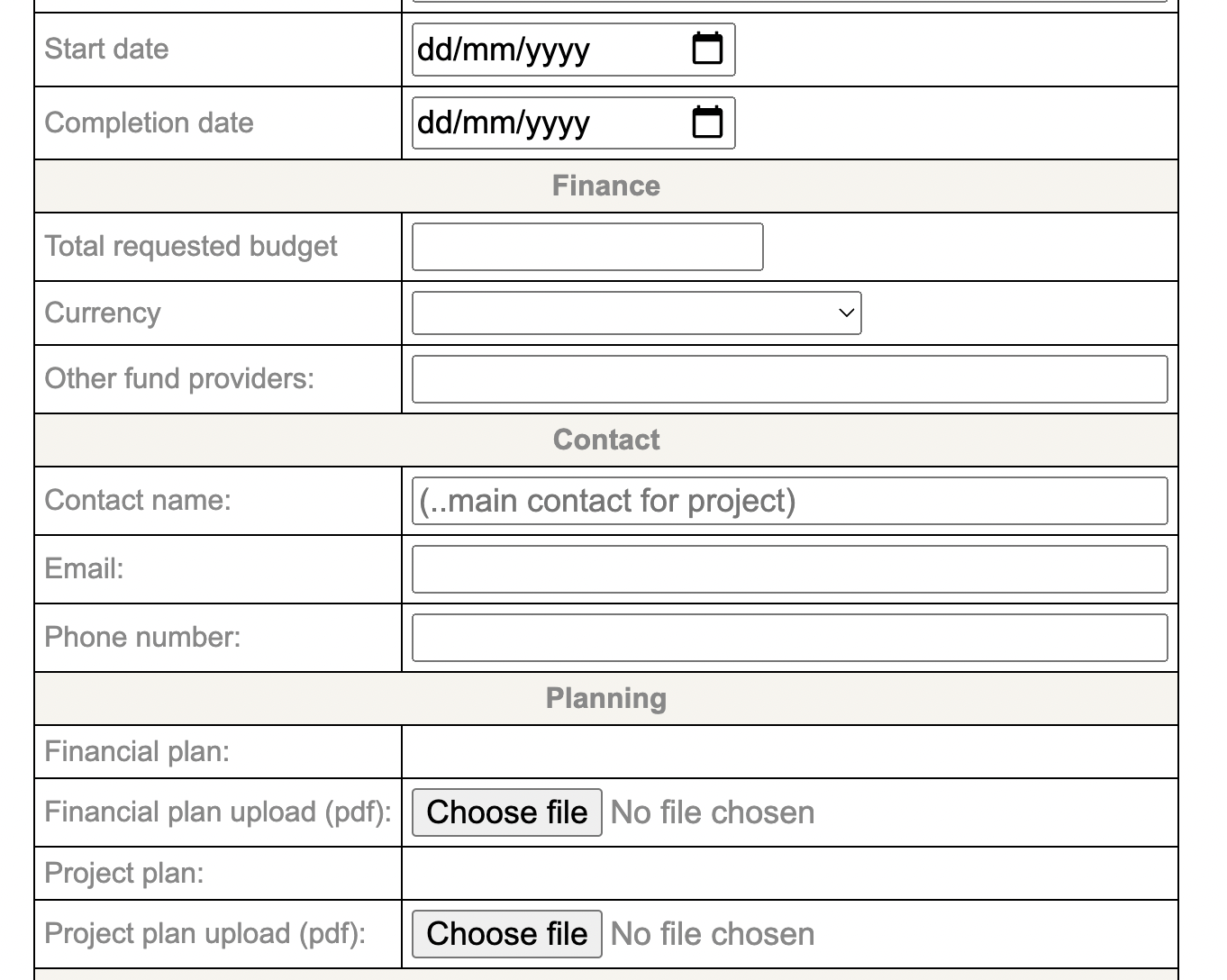
During the assessment process we shall work with you to ensure that we are happy with the goals of your project, that they meet our funding criteria, and that we know your budget requirements over time.
The Assessment table will show once you have created projects and the initial evaluation is complete. Assessments follow each other, starting with the Audit and ending with Finance. Each assessment will show as Not started, Started or Complete. 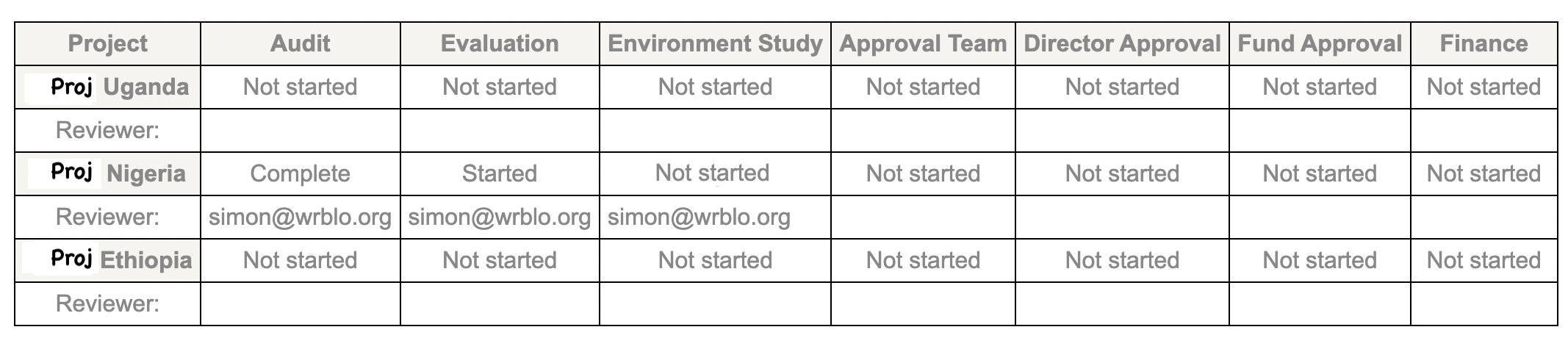
When an assessment starts, the table will show the name of the reviewer who will carry out the assessment. The reviewer may contact you for further information.
The assessment process are as follows: